FleetAI365 extracts details from uploaded rate confirmation PDFs, checks load rules, and organizes the load on a dispatch board. A human reviews the drafted emails and confirms truck assignments before dispatching.
A rate confirmation arrives as a PDF. Here is what FleetAI365 does with it, and where you stay in control.
Rate con
Extracted
Checked
You confirm
Booked
Dispatched
In transit
Delivered
Dispatch workflow steps
Extract
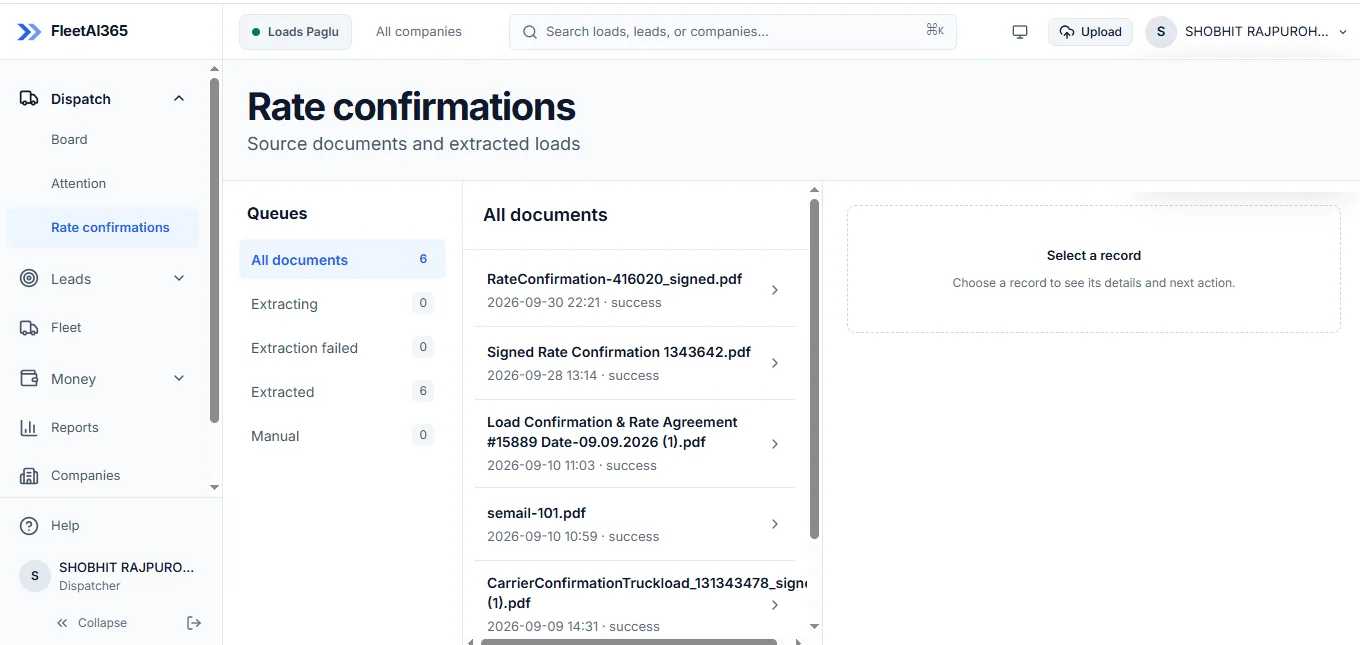
Drop a rate confirmation PDF. FleetAI365 reads the broker, stops, appointment times and rate into a load record. Source documents stay listed beside the loads extracted from them, so you can always check the original.
Broker, stops and appointment times
Rate and load details
No manual entry
Rate confirmations
Validate
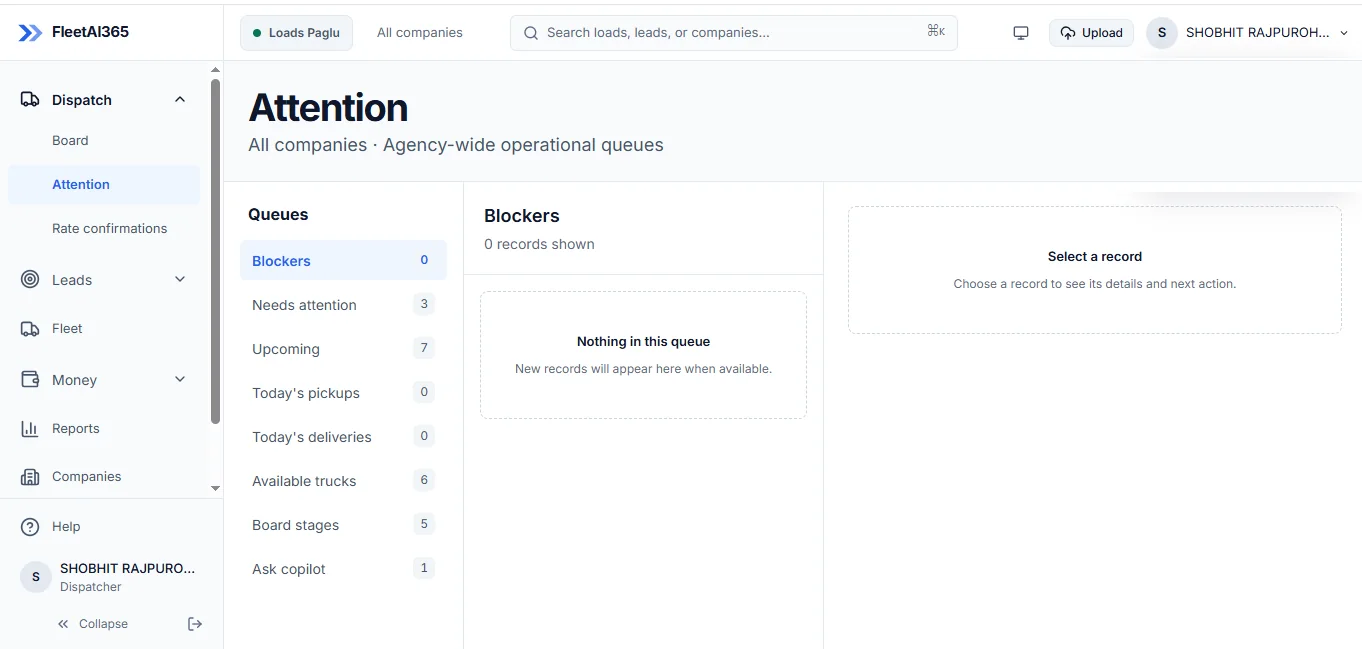
Fixed rules, not AI guesses, check the load against your fleet. The same load gets the same answer every time. Problems land in an attention queue before they cost you.
Overweight limits
Impossible appointment times
Missing fields
Duplicate bookings
Attention
Dispatch and track
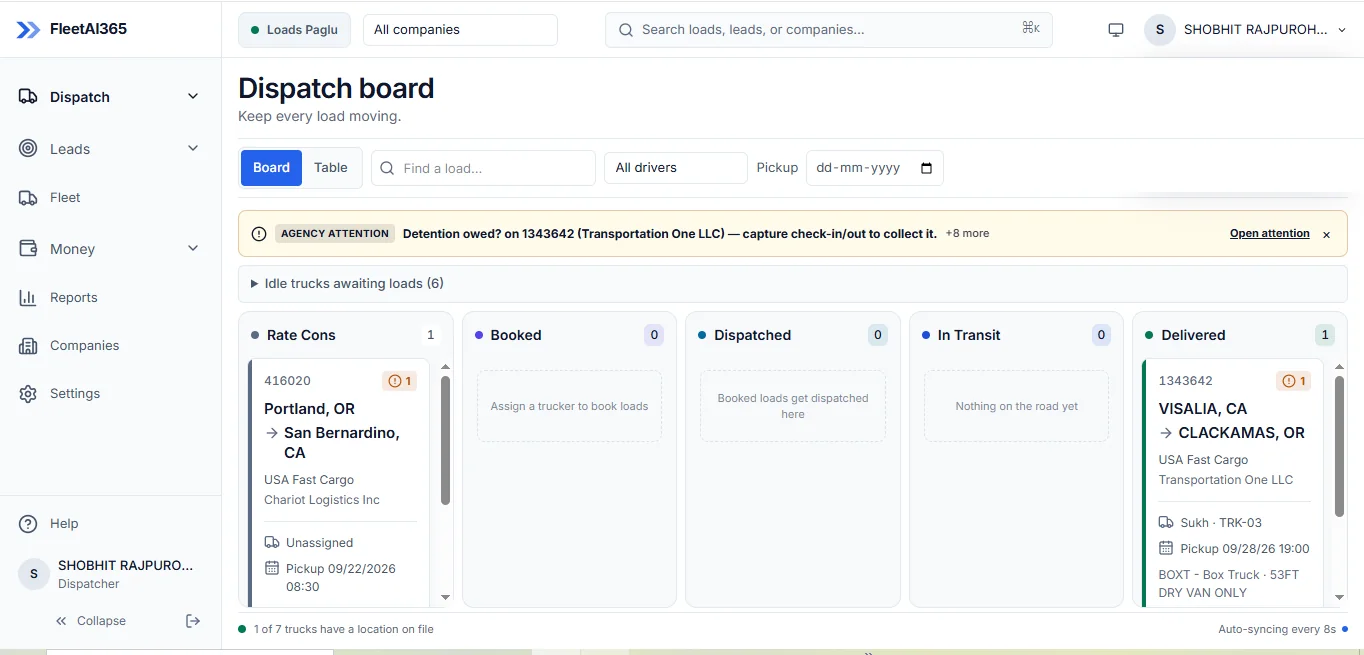
Assign a truck and driver with one click. The Over-Dispatch Guard blocks a truck or driver already on a load. Dispatch emails go out from your own Gmail, and the load moves across the board to Delivered.
Rate Cons, Booked, Dispatched, In Transit, Delivered
 FleetAI365